Getting Clean Text Layers from a Poster or Ad
How to split a poster so the headline, small print and logo land on their own layers, and how to change the words afterwards without a trace.
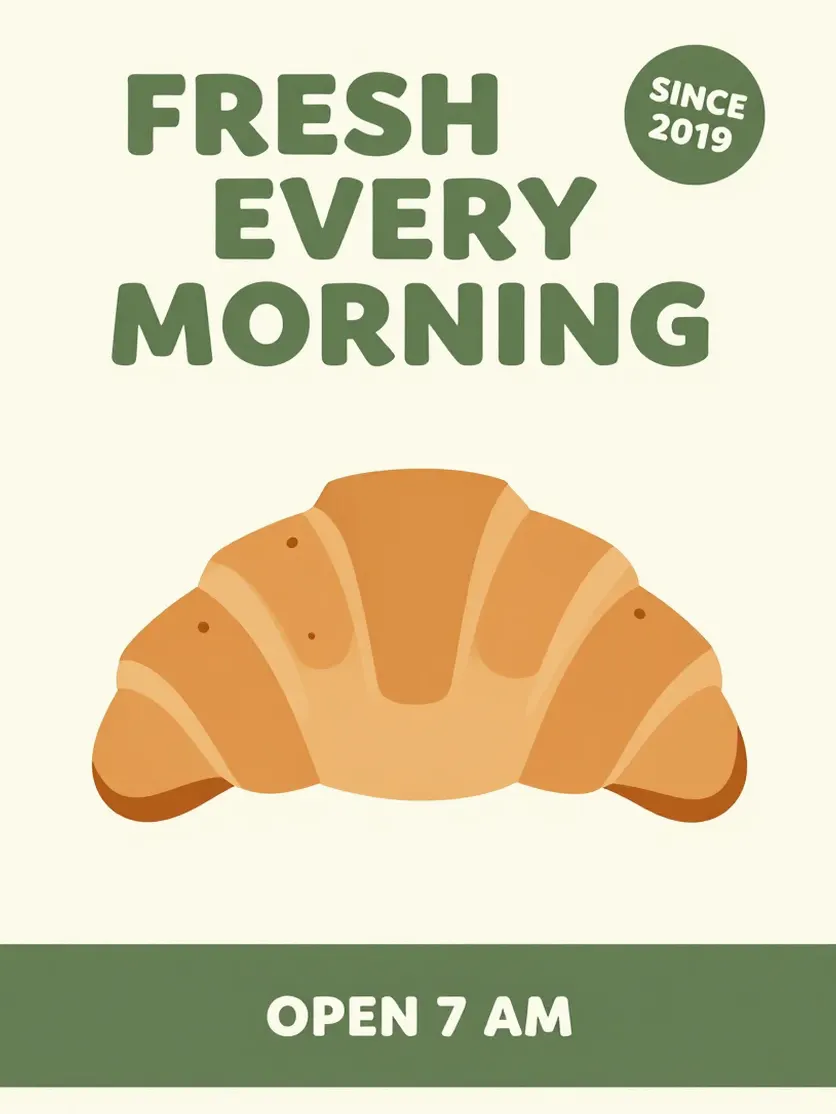
The most common reason to split a poster is to change its words: a new date, a new price, a headline in another language. That only works if the text comes off cleanly and the picture under it is whole. Here is how to get there.
Ask for 8 layers
A poster has more parts than a photo: background, image, headline, sub-heading, body text, logo, maybe a badge. With up to 4 layers, the model has to group several of them. Up to 8 (152 credits) gives each text block room to come off alone.
Start from the cleanest file you have
- A digital export beats a photo of a print: no glare, no folds, no perspective.
- If you only have a photo, straighten and crop it to the poster edges first.
- Use the largest version. Thin strokes and small print need pixels to separate cleanly.
Check the split in the exploded view
The studio's exploded view tilts the stack and pulls the layers apart, so you can see at a glance which block landed where. Look for:
- The headline on its own layer. Large type separates most reliably.
- Small print grouped together. Lines of small text close to each other often share a layer. Select it and use Split this layer again to pull them apart.
- The background whole. Hide every text layer: the background should be clean where the words were.
Change the words
The split gives you the lettering as images on transparent layers, not live type. Download the PSD, hide the old text layer, and set the new words with your editor's type tool in a matching font. Because the background under it is already repainted, there is nothing to clone out.
Check edges against a backdrop
White text on a dark poster can carry a faint fringe. Before you download, switch the studio's backdrop to black, then white: any fringe shows up immediately, and you can decide whether to clean it in your editor.
When the text stays merged
Thin outlined type, text set on a busy photo, or letters that touch an object can stay fused with what is behind them. Select that layer in the studio and split it again on its own: the second pass only has to separate a few parts, so the lettering often comes apart cleanly. If it still does not, the poster's typeface is usually easy to match, and retyping one short line takes less time than masking it.
Keep the original next to the layers
Save the untouched poster alongside the PSD. When a client asks for the old wording back, or a second size of the same ad, you can start again from the source instead of from an edited copy.
The separate image into layers page has the splitter on it.
Split one of your own images
Upload an image, pick 4 or 8 layers and download a layered PSD. New accounts get free credits for a first split.